
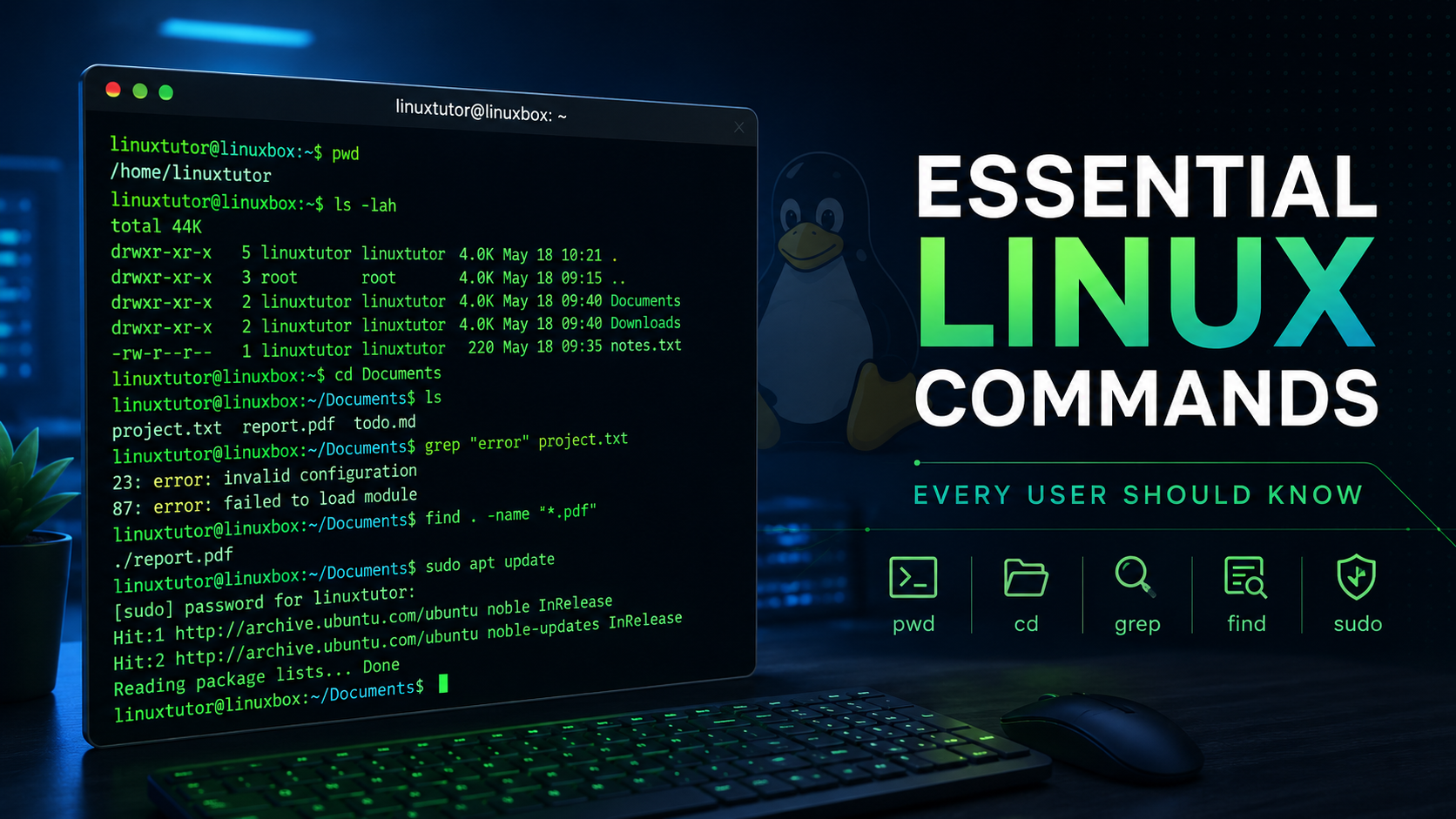
Essential Linux Commands Every User Should Know
The Linux terminal may look intimidating at first, but it remains one of the most powerful tools available to system administrators, developers, and everyday users. Learning a few core commands can help you navigate your system faster, manage files efficiently, and troubleshoot problems with confidence.
Here are the essential Linux commands every user should know.
1. pwd – Print Working Directory
The pwd command displays your current location in the filesystem.
pwd
Example output:
/home/user/Documents
This command is useful when you're navigating through multiple directories and need to confirm your current location.
2. ls – List Directory Contents
Use ls to view files and folders in the current directory.
ls
For more detailed information:
ls -lah
This displays:
File permissions
Ownership
File sizes
Hidden files
Modification dates
h2]3. cd – Change Directory[/h2]
Navigate through the filesystem using cd.
cd Documents
Go to your home directory:
cd ~
Move up one level:
cd ..
4. mkdir – Create Directories
Create new folders directly from the terminal.
mkdir projects
Create nested directories:
mkdir -p projects/linux/tutorials
5. cp – Copy Files and Directories
Copy a file:
cp report.txt backup-report.txt
Copy a directory recursively:
cp -r website-backup archive/
6. mv – Move and Rename Files
Rename a file:
mv oldname.txt newname.txt
Move a file to another directory:
mv document.pdf ~/Documents/
7. rm – Remove Files and Directories
Delete a file:
rm unwanted.txt
Delete a directory and its contents:
rm -r old-project
Use this command carefully. Deleted files generally cannot be recovered easily.
8. cat – View File Contents
Display the contents of a text file:
cat notes.txt
Combine files:
cat file1.txt file2.txt > combined.txt
9. grep – Search Inside Files
Search for specific text within files:
grep "error" logfile.log
Case-insensitive search:
grep -i "warning" logfile.log
This command is invaluable for troubleshooting and log analysis.
10. find – Locate Files and Directories
Find a file by name:
find ~/Documents -name "invoice.pdf"
Find all log files:
find /var/log -name "*.log"
The find command is one of the most powerful tools available in Linux.
11. sudo – Run Commands as Administrator
Many system tasks require elevated permissions.
sudo apt update
Use sudo only when necessary, as it grants administrative privileges.
12. df – Check Disk Space
View disk usage:
df -h
The -h option provides human-readable output using MB, GB, and TB units.
13. free – Check Memory Usage
Display RAM and swap usage:
free -h
This is useful when diagnosing performance issues.
14. top – Monitor System Activity
View real-time system information:
top
Many users also prefer the more modern alternative:
htop
which offers a cleaner and more interactive interface.
15. history – View Previously Executed Commands
Display command history:
history
Re-run a previous command:
!123
where 123 is the command number from the history list.
Final Thoughts
Linux offers thousands of commands, but mastering these essentials provides a solid foundation for daily use. Whether you're managing a server, developing software, or simply exploring Linux for the first time, these commands will help you work more efficiently and gain confidence in the command line.
Start by practicing a few commands each day. Before long, you'll find that the terminal becomes one of the most productive tools in your Linux toolkit.
No comments yet. Be the first to comment.