
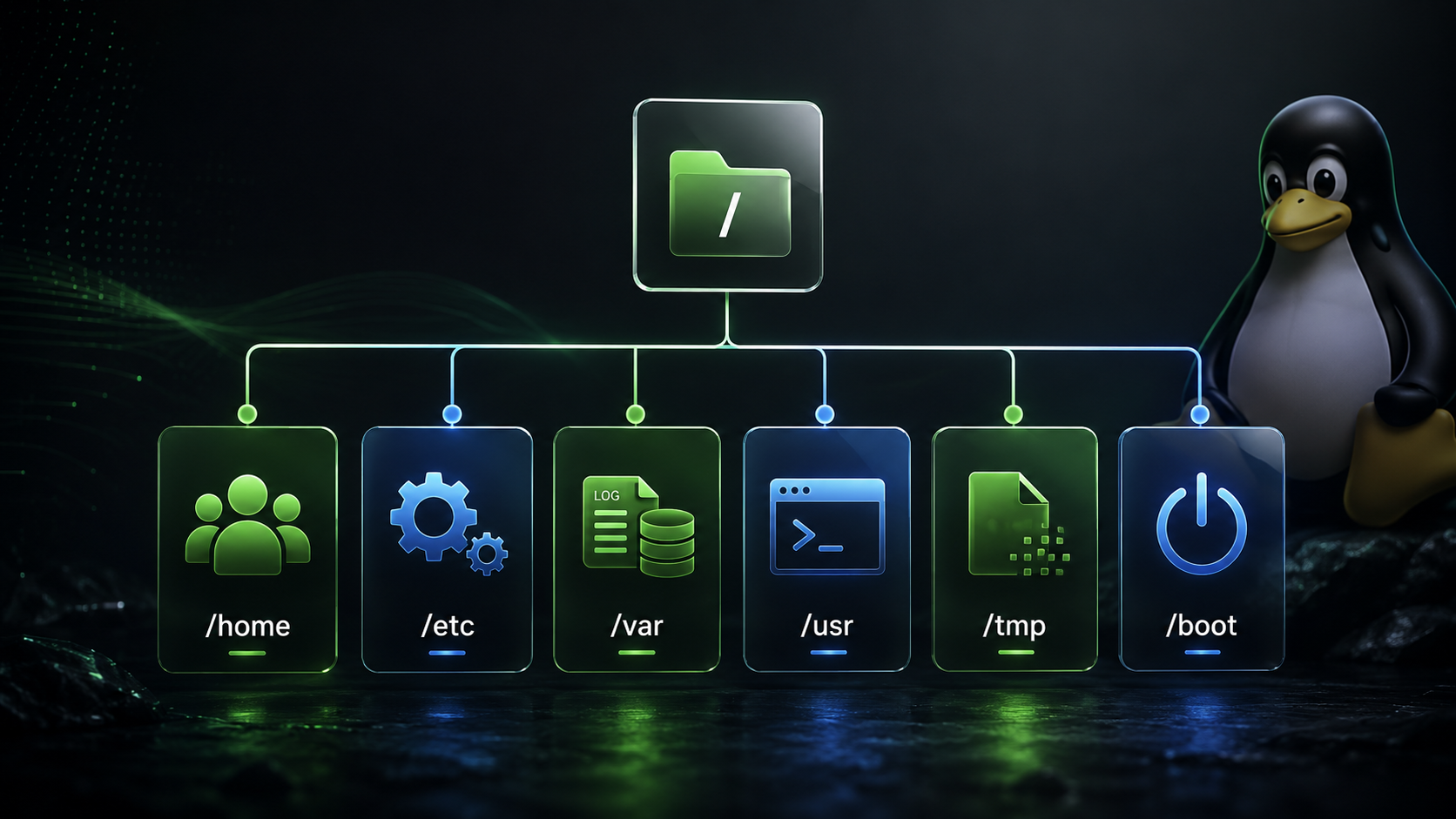
If you've recently switched to Linux, you've probably encountered directories like /home, /etc, /var, and /usr and wondered what they actually do.
Unlike Windows, which separates files across multiple drive letters, Linux organizes everything into a single directory tree. Whether it's your documents, applications, hard drives, or even hardware devices, everything appears somewhere within this structure.
Let's explore the most important directories every Linux user should know.
At the top of the Linux filesystem sits the root directory:
/
Think of it as the foundation of the entire operating system. Every file and folder on your Linux machine exists somewhere underneath the root directory.
Unlike Windows, there are no separate drive letters. Additional disks and partitions are mounted somewhere within the filesystem tree.
The /home directory contains user accounts and personal files.
For example:
/home/andy
/home/sarah
/home/john
Inside your home directory you'll find:
Most desktop Linux users spend the majority of their time working within /home.
You can quickly return to your home directory by typing:
cd ~
or simply:
cd
WHY IT MATTERS
When Linux is upgraded or repaired, your personal files in /home can often remain untouched, making backups and migrations much easier.
The /etc directory contains system-wide configuration files.
Examples include:
/etc/hosts
/etc/fstab
/etc/passwd
/etc/ssh/
These files control how your system behaves and how services are configured.
For example:
WHY IT MATTERS
When troubleshooting Linux systems, administrators often begin by checking configuration files located in /etc.
Be careful when editing files here, as mistakes can affect the entire system.
The /var directory stores files that change frequently while the system is running.
Common examples include:
/var/log
/var/cache
/var/tmp
/var/spool
This is where Linux stores:
WHY IT MATTERS
If you're investigating a system issue, the first place to look is often:
/var/log
Many Linux distributions store critical logs here.
For example:
sudo less /var/log/syslog
or
sudo journalctl
can provide valuable troubleshooting information.
The /usr directory contains most user applications, libraries, and shared resources.
Common locations include:
/usr/bin
/usr/sbin
/usr/lib
/usr/share
Most software installed through your package manager ends up somewhere under /usr.
Examples:
/usr/bin/firefox
/usr/bin/vim
/usr/share/icons
WHY IT MATTERS
Think of /usr as the operating system's software warehouse.
Most of the programs you use every day live here.
Despite its name, /usr doesn't contain user files. Historically, the name originated from "Unix System Resources."
The /tmp directory is used for temporary files created by applications and the operating system.
Example:
/tmp
Programs use this location to store temporary data while running.
Files in /tmp are often automatically deleted during reboot.
WHY IT MATTERS
If an application crashes or needs temporary working space, /tmp is usually involved.
You should avoid storing important files here because they may disappear without warning.
The /boot directory contains everything required for Linux to start.
Typical contents include:
/boot/vmlinuz
/boot/initrd.img
/boot/grub
This directory stores:
WHY IT MATTERS
Without /boot, Linux cannot start.
Most users rarely need to modify anything in this directory, but understanding its purpose helps explain how Linux boots.
Here's a simplified view:
/
├── boot
├── etc
├── home
│ ├── user1
│ └── user2
├── tmp
├── usr
└── var
Each directory serves a specific purpose and helps keep the operating system organized.
Tips for Exploring the Filesystem
Useful commands:
View current directory:
pwd
List files:
ls -lah
Change directory:
cd /etc
View directory structure:
tree /
(You may need to install the tree package first.)
Final Thoughts
The Linux filesystem may seem unusual at first, especially for users coming from Windows. However, once you understand the purpose of key directories such as /home, /etc, /var, /usr, /tmp, and /boot, the structure becomes logical and easy to navigate.
Learning the filesystem is one of the most important steps in becoming comfortable with Linux. As you continue your Linux journey, you'll find that understanding where files live makes troubleshooting, administration, and daily use much simpler.
Master the filesystem, and you'll have built one of the strongest foundations for learning Linux.
Unlike Windows, which separates files across multiple drive letters, Linux organizes everything into a single directory tree. Whether it's your documents, applications, hard drives, or even hardware devices, everything appears somewhere within this structure.
Let's explore the most important directories every Linux user should know.
The Root Directory (/)
At the top of the Linux filesystem sits the root directory:
/
Think of it as the foundation of the entire operating system. Every file and folder on your Linux machine exists somewhere underneath the root directory.
Unlike Windows, there are no separate drive letters. Additional disks and partitions are mounted somewhere within the filesystem tree.
/home – Your Personal Space
The /home directory contains user accounts and personal files.
For example:
/home/andy
/home/sarah
/home/john
Inside your home directory you'll find:
- Documents
- Downloads
- Pictures
- Music
- Videos
- Configuration files
Most desktop Linux users spend the majority of their time working within /home.
You can quickly return to your home directory by typing:
cd ~
or simply:
cd
WHY IT MATTERS
When Linux is upgraded or repaired, your personal files in /home can often remain untouched, making backups and migrations much easier.
/etc – System Configuration
The /etc directory contains system-wide configuration files.
Examples include:
/etc/hosts
/etc/fstab
/etc/passwd
/etc/ssh/
These files control how your system behaves and how services are configured.
For example:
- Network settings
- User account information
- Mounted drives
- SSH server settings
- System services
WHY IT MATTERS
When troubleshooting Linux systems, administrators often begin by checking configuration files located in /etc.
Be careful when editing files here, as mistakes can affect the entire system.
/var – Variable Data
The /var directory stores files that change frequently while the system is running.
Common examples include:
/var/log
/var/cache
/var/tmp
/var/spool
This is where Linux stores:
- System logs
- Application logs
- Mail queues
- Print jobs
- Package caches
WHY IT MATTERS
If you're investigating a system issue, the first place to look is often:
/var/log
Many Linux distributions store critical logs here.
For example:
sudo less /var/log/syslog
or
sudo journalctl
can provide valuable troubleshooting information.
/usr – Applications and Shared Resources
The /usr directory contains most user applications, libraries, and shared resources.
Common locations include:
/usr/bin
/usr/sbin
/usr/lib
/usr/share
Most software installed through your package manager ends up somewhere under /usr.
Examples:
/usr/bin/firefox
/usr/bin/vim
/usr/share/icons
WHY IT MATTERS
Think of /usr as the operating system's software warehouse.
Most of the programs you use every day live here.
Despite its name, /usr doesn't contain user files. Historically, the name originated from "Unix System Resources."
/tmp – Temporary Files
The /tmp directory is used for temporary files created by applications and the operating system.
Example:
/tmp
Programs use this location to store temporary data while running.
Files in /tmp are often automatically deleted during reboot.
WHY IT MATTERS
If an application crashes or needs temporary working space, /tmp is usually involved.
You should avoid storing important files here because they may disappear without warning.
/boot – System Startup Files
The /boot directory contains everything required for Linux to start.
Typical contents include:
/boot/vmlinuz
/boot/initrd.img
/boot/grub
This directory stores:
- Linux kernels
- Initial RAM disks
- Bootloader files
- GRUB configuration
WHY IT MATTERS
Without /boot, Linux cannot start.
Most users rarely need to modify anything in this directory, but understanding its purpose helps explain how Linux boots.
Visualizing the Linux Filesystem
Here's a simplified view:
/
├── boot
├── etc
├── home
│ ├── user1
│ └── user2
├── tmp
├── usr
└── var
Each directory serves a specific purpose and helps keep the operating system organized.
Tips for Exploring the Filesystem
Useful commands:
View current directory:
pwd
List files:
ls -lah
Change directory:
cd /etc
View directory structure:
tree /
(You may need to install the tree package first.)
Final Thoughts
The Linux filesystem may seem unusual at first, especially for users coming from Windows. However, once you understand the purpose of key directories such as /home, /etc, /var, /usr, /tmp, and /boot, the structure becomes logical and easy to navigate.
Learning the filesystem is one of the most important steps in becoming comfortable with Linux. As you continue your Linux journey, you'll find that understanding where files live makes troubleshooting, administration, and daily use much simpler.
Master the filesystem, and you'll have built one of the strongest foundations for learning Linux.
No comments yet. Be the first to comment.